
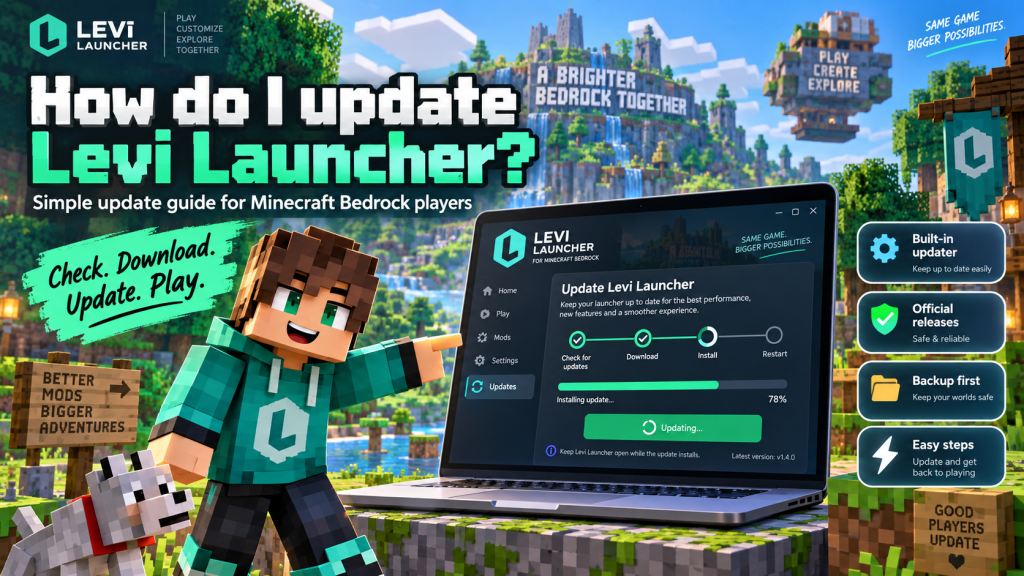
Levi Launcher can be updated directly through its built-in update system, helping Minecraft Bedrock players stay current with new features, bug fixes, security improvements, and compatibility changes. Keeping the launcher updated is especially useful if you regularly work with different Minecraft versions, mods, isolated installations, or other advanced features available inside the application.
Fortunately, updating Levi Launcher is usually a straightforward process. The launcher can check for available updates, download newer versions, and install them when needed. This guide explains how to update Levi Launcher safely, prepare your Minecraft data beforehand, manage Windows permissions, and fix common problems if the update does not complete successfully.
Why Keeping Levi Launcher Updated Matters
Software updates are not only about adding new features. They can also improve stability, fix crashes, resolve compatibility problems, and make the overall launcher experience smoother.
Levi Launcher continues to receive development updates that improve different parts of the application. Recent releases have included startup improvements, accessibility changes, safer mod handling, WebView2-related fixes, and better Minecraft Bedrock compatibility.
Benefits of Using the Latest Version
Using an outdated launcher may mean missing fixes or improvements that could make your setup more reliable. A newer version may also work better with changes introduced in Minecraft Bedrock itself.
Regular updates can help users benefit from:
- Bug fixes
- Stability improvements
- Better Minecraft compatibility
- Interface changes
- Improved mod handling
- New launcher functionality
For players who frequently manage multiple Minecraft environments, staying updated can reduce avoidable issues.
Back Up Important Minecraft Data First
Before updating software connected to your Minecraft setup, backing up important worlds is a sensible precaution. A normal launcher update should not usually delete Minecraft content, but backups provide an additional layer of protection.
This becomes more important if you are also experimenting with mods, resource packs, Preview builds, or different Minecraft versions at the same time.
What Should You Back Up?
If your Minecraft setup contains valuable content, consider making copies of:
- Important survival worlds
- Custom worlds
- Resource packs
- Behavior packs
- Screenshots
- Experimental setups
The official troubleshooting guidance recommends keeping important worlds backed up as part of safe recovery practices.
A backup can make it much easier to recover if something unexpected happens during or after an update.
Use the Built-In Update System
The easiest way to update Levi Launcher is to allow the application to manage the process through its built-in update functionality.
According to the official documentation, Levi Launcher can check, download, and install application updates. This means most users do not need to manually replace launcher files every time a new version is released.
Follow the Update Prompt
Open Levi Launcher normally and watch for any update notification or message. If a newer release is available, review the information displayed before continuing with the update.
The usual process involves:
- Opening Levi Launcher.
- Checking for an available update.
- Reviewing the update information.
- Starting the download.
- Allowing the installation to finish.
- Reopening the launcher if required.
Do not close the program or shut down your computer while important update files are being replaced.
Let the Update Finish Completely
Interrupting an update can create unnecessary problems, particularly if the launcher is in the middle of replacing or modifying application files.
Once the update starts, allow the download and installation process to complete before restarting Windows or closing the launcher.
Recent development has also improved the update-related interface and safety behavior, which helps make the self-update process easier to manage.
Use a Stable Internet Connection
Because launcher updates need to be downloaded, a stable internet connection is useful during the process.
If your connection repeatedly drops, the update may fail or need to be downloaded again. Waiting for a more stable connection can sometimes solve update problems without any additional troubleshooting.
Allow Windows Permission When Required
In some situations, Windows may ask Levi Launcher for administrator or elevated permission during an update.
This can happen when the launcher is installed in a location where normal applications do not have permission to modify certain files.
Why Elevated Permission May Appear
The official troubleshooting guidance explains that self-updates may require elevated permission when the application’s installation directory is not writable.
If you trust your existing Levi Launcher installation and the request appears as part of its normal update process, review the Windows prompt carefully before continuing.
Users who repeatedly experience permission-related errors should also check whether their launcher and managed content are stored in folders where their Windows account has normal write access.
Update Manually Through Official Releases
If the automatic updater is unavailable or repeatedly fails, users can check the project’s official GitHub Releases page for the latest available version.
Before downloading anything, compare the version listed there with the one currently installed on your PC. This helps you confirm whether you actually need to update.
Review the Release Notes
Release notes can explain what changed in a newer version, including:
- Bug fixes
- Compatibility improvements
- New features
- Interface changes
- Stability updates
The project’s changelog can also help users review previous releases and understand whether a particular update contains fixes relevant to their setup.
Always obtain manual updates from official project sources rather than unfamiliar third-party websites.
Avoid Unofficial Update Files
Third-party websites may offer outdated, modified, or unofficial Levi Launcher installers. Even if the version number looks correct, the file may not be the same build distributed through the official project.
For this reason, users should prefer the built-in updater or project-approved release sources whenever possible.
Keep Windows Security Enabled
There is normally no reason to disable Windows Security simply to update the launcher. If Windows displays a warning, confirm that the update came from a trusted source before continuing.
Keeping normal security protections enabled helps reduce the risk of installing modified or suspicious files.
What to Do If the Update Fails
An update may occasionally fail because of Windows permissions, a poor internet connection, missing system components, or an installation directory that cannot be modified.
If the update fails, restart Levi Launcher and try again before making more significant changes. Sometimes a temporary connection or file-access problem can be resolved simply by reopening the program.
Check the Most Common Causes
If the problem continues, check:
- Your internet connection
- Windows file permissions
- Gaming Services
- Microsoft GameInput
- Launcher installation paths
- Windows security settings
Make sure your security software is not unnecessarily blocking the legitimate launcher update process.
Check Startup Logs for More Serious Problems
If Levi Launcher closes before its main interface appears, startup logs can provide useful troubleshooting information.
The launcher may record startup information at:
%APPDATA%\levilauncher.exe\logs\startup.log
This file can help identify whether the failure is related to a Windows component, launcher startup process, or another configuration problem.
Report Persistent Bugs
If the issue continues and can be reproduced consistently, the project’s GitHub issue tracker can be used to report the problem.
When reporting an issue, it is useful to provide:
- Your Windows version
- Your Levi Launcher version
- Steps that reproduce the problem
- Relevant logs
- Screenshots of the error
Providing clear technical details makes it easier to understand and investigate the problem.
Check That the Update Was Successful
After updating, reopen Levi Launcher and confirm that it starts normally. Check the installed version information or release notes to make sure the newer build has been applied successfully.
It is also a good idea to launch Minecraft normally before immediately changing mods, packs, or important launcher settings.
Test Before Making More Changes
If Minecraft launches successfully and your normal setup works as expected, you can continue managing versions and content as usual.
Testing the launcher immediately after an update also makes troubleshooting easier. If a problem appears before you change anything else, it is simpler to identify whether the issue may be connected to the new launcher version.
Conclusion
Levi Launcher makes updating relatively simple by providing built-in tools for checking, downloading, and installing application updates. Keeping the launcher current can give users access to recent bug fixes, compatibility improvements, interface changes, and new functionality while supporting a smoother Minecraft Bedrock management experience.
Levi Launcher should be updated through its built-in system or trusted official project sources whenever possible. Back up important Minecraft worlds beforehand, allow Windows permissions only when the update source is trusted, and use official troubleshooting resources if something goes wrong. These precautions can help keep the launcher current without placing valuable Minecraft setups at unnecessary risk.