
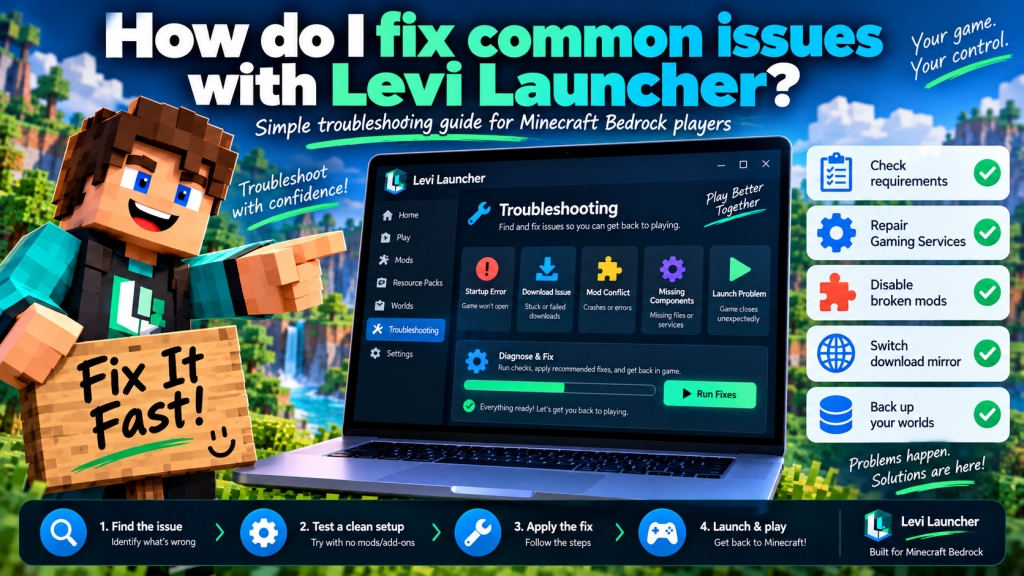
Levi Launcher can occasionally experience problems such as startup crashes, failed Minecraft launches, slow downloads, missing Windows components, mod conflicts, or installation errors. Most of these issues can be fixed without completely removing your Minecraft setup, especially when the actual cause is identified before making major changes.
If you are wondering how to fix common issues with Levi Launcher, this guide covers the most practical troubleshooting methods. Following the steps in a logical order can help you protect important Minecraft worlds, avoid unnecessary reinstalls, and determine whether the problem comes from Windows, the launcher, Minecraft, or third-party content.
Confirm Your PC Meets the Basic Requirements
Before troubleshooting individual errors, make sure your computer meets the basic Levi Launcher requirements. A surprising number of startup and installation problems can be traced back to missing Windows components or an incomplete Minecraft setup.
Levi Launcher is designed for Windows 10 and Windows 11 and requires a legitimate licensed copy of Minecraft Bedrock Edition (GDK).
Check the Required Windows Components
The launcher may depend on several components for normal operation, including:
- Microsoft Gaming Services
- Microsoft GameInput
- Microsoft Edge WebView2 Runtime
- Required Visual C++ components
- A working internet connection
Minecraft Bedrock should also have been installed through the Microsoft Store at least once. If the Microsoft Store setup or Gaming Services configuration appears incomplete, launch Minecraft normally, close it, and then return to Levi Launcher.
Checking these basic requirements first can save time because many problems that appear to be launcher errors are actually caused by missing system dependencies.
Fix Levi Launcher When It Will Not Open
One of the most frustrating problems occurs when Levi Launcher closes immediately, crashes during startup, or never displays its main interface.
Recent versions include improved startup diagnostics and WebView2-related changes designed to reduce crashes linked to certain Windows or graphics configurations.
Check the Startup Log
If the launcher closes before the interface appears, try opening it again once. If the problem continues, check the startup log located at:
%APPDATA%\levilauncher.exe\logs\startup.log
This file may contain useful information about what failed during the startup process.
Also confirm that WebView2 Runtime and the required Visual C++ components are installed correctly. Missing or damaged dependencies can prevent the launcher from reaching its main window.
Repair Gaming Services and GameInput Problems
Levi Launcher depends on Microsoft’s gaming environment, so problems with Gaming Services or GameInput can prevent Minecraft versions from installing or launching correctly.
If the launcher reports that Gaming Services is missing or damaged, follow the repair or installation guidance provided by the application. You may also need to check Minecraft’s Microsoft Store installation.
Fix a Missing GameInput Component
If GameInput is missing, install the required redistributable when prompted and restart Levi Launcher afterward.
Avoid downloading Microsoft gaming components from random third-party websites. Using Microsoft sources or launcher-guided installation methods reduces the risk of installing outdated or modified files.
Solve Minecraft Version Launch Failures
Sometimes Levi Launcher itself opens normally, but a particular Minecraft version refuses to start. In this situation, the problem may be related to the specific game build rather than the launcher.
Start by testing the affected version without mods. A modification that worked with an older Minecraft release may stop working after the game is updated.
Test a Clean Installation
Next, confirm that the Minecraft version completed its download and installation correctly. Also check that Gaming Services and GameInput remain available.
If the problem continues, create a clean isolated installation of the same or another stable Release build.
If the clean version launches successfully, the problem is more likely connected to:
- Mods
- Resource packs
- Behavior packs
- Configuration changes
- The original Minecraft installation
Testing a clean environment can make the real cause much easier to identify.
Handle Mod and Add-On Conflicts Carefully
Mods can add useful functionality to Minecraft Bedrock, but they can also create compatibility problems when game versions change.
Levi Launcher supports .zip and .dll mod workflows along with tools such as LeviLamina and LIP. However, mod compatibility can vary between Minecraft releases and may change more frequently on Preview builds.
Find the Problematic Mod
If issues start immediately after installing a new modification, disable the most recent mod first and launch Minecraft again.
For larger modded setups, return to the last configuration that worked correctly. Then add mods back one at a time or in small groups and test the game after each change.
This process helps isolate the specific modification responsible for the problem instead of removing every mod unnecessarily.
Correct Failed or Slow Downloads
Minecraft version downloads can occasionally become slow or fail because of network conditions, temporary server issues, or problems with the selected download mirror.
If a download repeatedly fails, try switching to another available mirror and start the download again.
Check Your Connection and Storage
Before retrying, make sure you have:
- A stable internet connection
- Enough free storage space
- A writable installation folder
- No interrupted download process
Avoid repeatedly closing Levi Launcher while a Minecraft version is being installed. Allow the download and installation to finish before attempting to launch that version.
Fix Folder Permission Errors
Levi Launcher needs permission to write files to its selected installation and content directories.
If you receive an error indicating that a path is not writable, open the launcher settings and select a folder where your Windows account has normal write access.
Review Administrator Requests Carefully
In some situations, Levi Launcher may request elevated Windows permission during installation or a self-update.
Review the request before continuing and allow it only when you are confident that it comes from your trusted Levi Launcher installation.
Keeping Minecraft data and launcher files in accessible folders can reduce repeated permission-related errors.
Protect Your Worlds Before Major Fixes
Before reinstalling Minecraft versions, removing installations, experimenting with mods, or making major troubleshooting changes, back up your important worlds.
Deleting a managed version can also remove the environment associated with that installation, which makes backups particularly important before major recovery work.
Follow a Safe Troubleshooting Order
A sensible troubleshooting sequence is:
- Back up important Minecraft data.
- Remove or disable recent mods and packs.
- Test a clean isolated version.
- Check Windows gaming components.
- Retry the affected Minecraft build.
- Reinstall the version only if necessary.
This approach helps reduce the risk of losing progress while you search for the actual source of the problem.
Keep Levi Launcher and Windows Updated
Some problems may already be fixed in newer launcher releases or Windows component updates.
Keeping Levi Launcher current can provide bug fixes, compatibility improvements, startup changes, and better support for newer Minecraft Bedrock builds.
Update Trusted Components Only
When updating related software, use trusted sources for:
- Levi Launcher
- Windows updates
- Microsoft Gaming Services
- GameInput
- WebView2 Runtime
Avoid unofficial replacement files or modified installers because they can create additional problems instead of fixing the original issue.
Know When to Report a Bug
Not every problem can be solved locally. If an issue continues after standard troubleshooting and can be reproduced consistently, reporting it through the official Levi Launcher GitHub Issues page may be the next step.
A detailed bug report gives developers a much better chance of understanding the problem.
Include Useful Troubleshooting Details
A helpful report should include:
- Your Windows version
- Your Levi Launcher version
- The Minecraft version affected
- Exact steps that reproduce the issue
- Relevant startup or error logs
- Screenshots of the problem
Clear information makes it easier to determine whether the issue is caused by Levi Launcher, Windows, Minecraft, or third-party content.
Conclusion
Levi Launcher problems can often be fixed by checking Windows requirements, repairing Gaming Services or GameInput, testing Minecraft without mods, using clean isolated installations, switching download mirrors, and correcting folder permissions. Starting with simple checks before reinstalling everything can save time and help identify the actual source of the issue.
Levi Launcher also provides startup diagnostics and official troubleshooting resources for more difficult problems. Back up valuable worlds before major changes, keep the launcher and required components updated, use trusted mods, and report reproducible bugs with detailed logs when necessary. Following this approach can help maintain a more stable and reliable Minecraft Bedrock setup.