
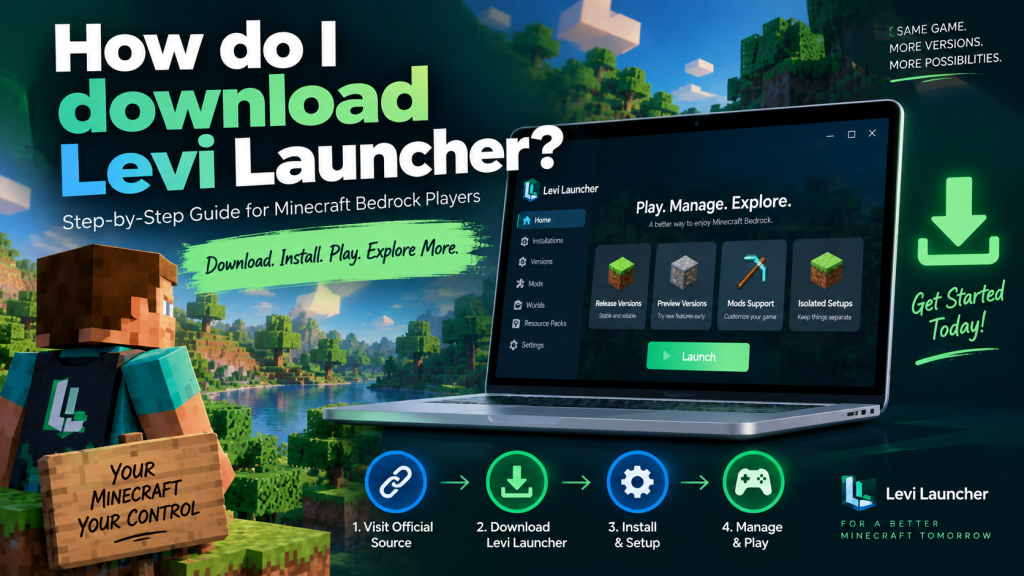
Levi Launcher is a desktop launcher made for Minecraft Bedrock Edition players on Windows who want more control over game versions, mods, isolated installations, and related content. If you are wondering how to download Levi Launcher safely, the best approach is to use official project sources and follow the recommended installation process carefully.
The download process itself is straightforward, but choosing the correct file and preparing your system properly are important. Levi Launcher supports Windows 10 and Windows 11 and requires a legitimate licensed copy of Minecraft Bedrock Edition. This guide explains the requirements, official download method, setup process, and basic safety steps in a clear and organized way.
Check the Requirements Before Downloading
Before downloading Levi Launcher, make sure your Windows PC meets the basic requirements. Preparing the required software first can help prevent installation failures, missing-component errors, or problems when you try to launch Minecraft later.
The main requirements include:
- Windows 10 or Windows 11
- A legitimate copy of Minecraft Bedrock Edition (GDK)
- Microsoft Gaming Services
- Microsoft GameInput
- A working internet connection
Keeping Windows updated is also recommended because system updates can improve compatibility with Microsoft gaming services and other components used by the launcher.
Make Sure Minecraft Is Properly Licensed
Levi Launcher does not provide Minecraft Bedrock Edition for free. You still need a legitimate Minecraft license associated with your Microsoft account before using the launcher to manage game versions.
This is an important distinction because Levi Launcher works as a management tool for Minecraft rather than replacing the game itself. Websites claiming that the launcher provides free Minecraft access should therefore be treated with caution.
Download Levi Launcher From the Official Source
The safest way to download Levi Launcher is through the official LiteLDev GitHub repository. The project’s documentation lists GitHub Releases as one of the official locations where users can obtain published launcher builds.
Open the Levi Launcher Releases section and look for the most recent suitable version. Each GitHub release generally contains release information along with an Assets section where the downloadable Windows files are provided.
Choose the Correct Windows Download
Select the Windows file supplied by the developers rather than downloading files from unrelated websites or mirrors. Avoid pages offering modified, “premium,” “unlocked,” or unofficial versions of the launcher.
The project changelog records version 0.3.14 dated August 5, 2026, but users should always check the current Releases page before downloading because newer builds may become available over time.
Save and Verify the Downloaded File
After selecting the appropriate release asset, your browser should begin downloading the file. In most cases, it will be stored in the standard Downloads folder unless you have configured your browser to save files somewhere else.
Allow the download to finish before opening the installer. Interrupting the process or trying to run an incomplete file may lead to installation errors.
Check the File Before Running It
If your browser or Windows displays a warning, first confirm that the file came directly from the official LiteLDev LeviLauncher repository. Verifying the download source is more important than automatically dismissing security messages.
You can also scan the file with Windows Security or another trusted security tool before opening it. This adds another simple layer of protection when installing third-party desktop software.
Complete the Levi Launcher Setup
Once the download has finished, open the installer and follow the instructions shown on the screen. Windows may display a security or permission prompt depending on your system settings and where the launcher needs to install its files.
Review the prompt carefully and continue only if you obtained the installer from the trusted project source. The setup process should then guide you through the remaining installation steps.
Install Required Windows Components
Levi Launcher may rely on additional Windows components to operate correctly. Recent launcher versions include startup checks and fixes involving components such as WebView2 and the Visual C++ runtime.
If the launcher reports that an important component is missing, install it only through Microsoft or another official source. Once the required components are available, reopen Levi Launcher and complete its first-time setup.
Add Your First Minecraft Version
After Levi Launcher opens successfully, you can begin managing Minecraft Bedrock installations. The launcher is designed to install, manage, isolate, mod, and launch both Release and Preview builds.
Choose the Minecraft version you want to use and follow the launcher prompts to create the installation. This makes it possible to maintain different game versions for different purposes instead of depending entirely on one Minecraft setup.
Release and Preview Builds
A Release build can be used for regular gameplay, while a Preview version may be useful when you want to test upcoming Minecraft features. Keeping these setups separately can make version management easier.
Players who regularly experiment with mods, new features, or different configurations can therefore organize their installations according to how they plan to use them.
Use Isolation for Experimental Setups
Version isolation is one of the useful features available in Levi Launcher. It helps keep different Minecraft environments separate instead of placing every configuration, world, pack, and experimental setup into the same game environment.
For example, you could maintain one installation for regular survival gameplay while keeping another version specifically for Preview builds or mods. This makes different setups easier to recognize and manage.
Back Up Important Worlds
Isolation can reduce conflicts between different setups, but it should not be treated as a complete replacement for backups. Important Minecraft worlds should still be copied before making major changes.
Backing up your data is especially sensible before installing mods, switching versions, changing game files, or experimenting with Preview builds.
Troubleshoot Basic Startup Problems
If Levi Launcher does not open correctly after installation, start by confirming that you downloaded the official release and that Windows is fully updated. Then check whether Microsoft Gaming Services, GameInput, and any required runtime components are installed properly.
Missing or damaged system components can sometimes prevent the launcher from opening or cause Minecraft versions to fail during startup.
Use Logs for More Difficult Errors
Recent Levi Launcher versions include startup diagnostics that can create logs when the application fails before the main interface appears. These logs can provide more useful information about what went wrong.
The project also provides documentation and a GitHub Issues section. If you need to report a problem, include useful details such as your Windows version, launcher version, steps needed to reproduce the error, and relevant screenshots or logs.
Follow Safe Download Practices
Always use official project sources whenever possible when downloading or updating Levi Launcher. Random websites may provide outdated, modified, or potentially unsafe files that are different from the releases provided by the developers.
Be especially cautious with websites claiming that Levi Launcher gives users Minecraft Bedrock for free. The launcher does not replace the requirement for a legitimate Minecraft license.
Keeping Windows Security enabled, backing up important Minecraft data, and reviewing release information before updating are simple habits that can make the overall experience safer and more reliable.
Conclusion
Levi Launcher is straightforward to download when you use an official source and prepare your Windows system correctly. Check the requirements first, visit the official release location, select the appropriate Windows build, verify the downloaded file, and complete the setup using trusted Windows components.
Levi Launcher can then provide Minecraft Bedrock players with a flexible way to manage Release and Preview versions, isolated installations, and modded setups. Keeping valuable worlds backed up, avoiding unofficial installers, and using trusted download sources can help make the installation and everyday use of the launcher smoother and more organized.